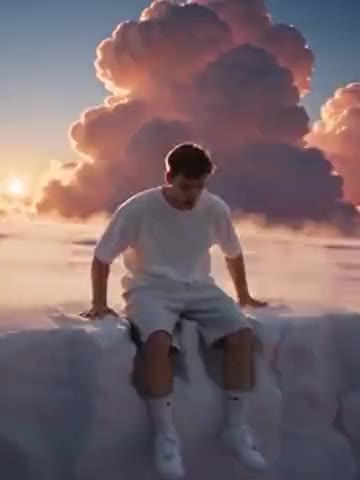
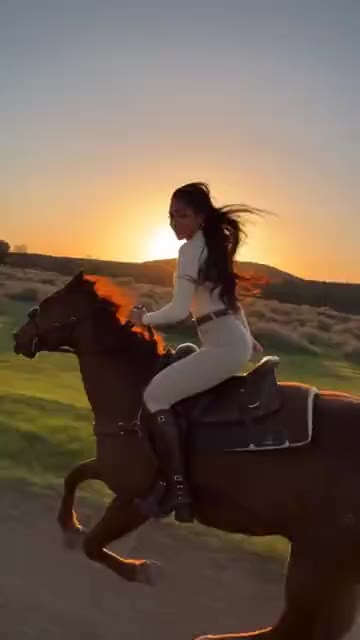
Photo to Video AI
Animate one photo into a short clip.
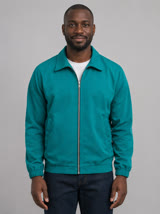
Photo to video AI starts with one still image. Upload a photo, choose a motion effect, and create a five- or ten-second clip for a short post or the first shot of a longer edit. If you want to animate a photo without building a slideshow, this is the workflow.
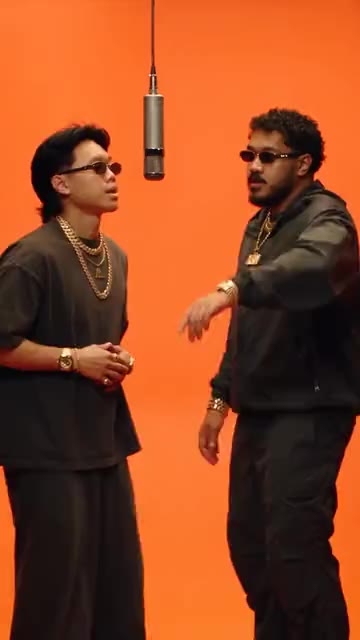
Standard photo effects produce silent clips. Hotel Lobby can generate original rap audio. Use a separate tool to add your own audio or sync lips to a recording. The generator shows availability and the credit cost before you submit.
What photo to video AI does with your photo
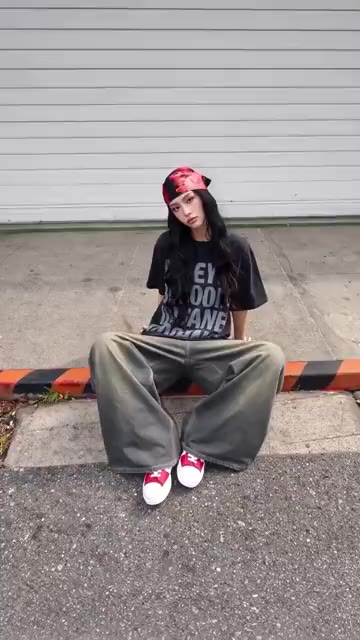
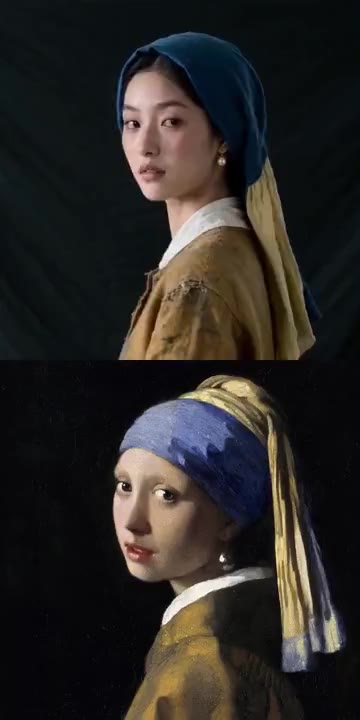
Photo to video AI and animate-photo tools both start from one still. The selected effect sets the camera motion and visual treatment. Start with a sharp photo and leave some room around the subject for the camera to move. Review the output for changes to faces, text or product details before sharing.
How to turn a photo into a video
The workflow is deliberately short, one input, one choice, one review.
Start with one clear photo
Pick a JPG, PNG or WebP file up to 4 MB. A single subject, shot in decent light, with some space around it, gives the model room to move. Screenshots, collage sheets and photos where the subject fills the whole frame leave nothing to animate, and the clip usually ends up looking like a still image that vibrates.
Choose the effect that sets the motion
Preview a movement such as a slow pull-back or a living portrait. Choose an effect suited to your subject and check its availability and credit cost before generating.
Review and save in your studio
Finished clips land in your studio, where you can watch the result, download it, and keep the source photo attached to it. If a generation fails for a confirmed reason, the reserved credits go back to your balance. If a provider request is still being checked, the task stays visible in your studio until the status resolves, so you are never guessing whether credits were spent.
What makes a good source image
Image quality decides more of the outcome than the effect you pick. Three things matter most.
Light, subject and framing
Choose a photo where the subject is lit from the front or the side, not silhouetted. Keep the subject sharp and reasonably large: a person from the waist up works better than a person standing in a crowd. Leave a margin at the edges, because effects that push or pull the camera need somewhere to move. Daylight, a window indoors, or studio light all work. A flash photo against a dark background is the hardest case, since the model has little information to move.
Images that usually disappoint
Very dark photos, heavy motion blur and subjects smaller than about a third of the frame tend to produce soft or sliding results. Photos with several people compete for attention, and the clip often drifts between them. Watermarked previews, screenshots with interface chrome and images that already contain text are weak inputs, because the model will try to move the text as well. None of this is blocked. It simply produces results you are less likely to publish.
Photo to video AI vs talking, dance, and text
Use this page to animate a photo with a standard motion effect. Choose talking photo when you want a portrait clip, photo to dance video for choreography looks, or text input in the generator when you want to describe a new scene. Availability depends on the selected mode and effect.
How the AI photo to video generator works
The AI photo to video generator on this page takes one still image, applies a selected motion effect, and returns a five- or ten-second clip. You choose duration and aspect ratio, confirm the credit quote, then review the result in your studio. It is built for photo to video AI jobs—not multi-photo slideshows and not free-form prompt editing. If you only need to try free photo to video AI preview and credit checks first, use the free try page.
Photo effects and previews
All effectsPreview the motion before you upload. The generator shows which effects are available for your input and settings.
Photo to video AI questions
Can I try photo to video AI for free?
Yes for browsing and setup: open the free photo to video AI page to preview effects, prepare a photo, and see credits before you generate. Creating a clip still needs an account and enough credits for the selected settings.
Is this the same as animate photo AI?
The core job is the same: one photo in, short motion clip out. Use the animate photo AI page when that is the phrase you searched. This page covers the broader photo to video AI workflow. Neither page is a multi-photo slideshow editor.
How long does a clip take to generate?
Length depends on model availability rather than on the size of your photo. Your studio shows the task status while it runs and keeps the task visible when a provider request is still being checked. The clips themselves are five to ten seconds.
Can I use the result commercially?
You are responsible for the material you upload. Make sure you have permission for the photo and for everyone in it, and follow the terms of the plan you are using. HypeMorph does not grant rights to images or footage you do not own.
What happens if a generation fails?
A confirmed failed generation returns the reserved credits to your balance. If the provider request is still unresolved, the task stays in your studio with its status until it is checked.
Which formats and sizes can I upload?
JPG, PNG and WebP, up to 4 MB per image, one image per generation. Oversized files are rejected before any credits are reserved.
Can I add music, or make a longer video?
Standard photo effects produce silent clips. Hotel Lobby can generate original rap audio. Use a separate tool to add your own audio or sync lips to a recording. You can also use an editor to add captions or assemble a longer cut.